

Root keys vs API keys
| Root Keys | API Keys | |
|---|---|---|
| Purpose | Manage Unkey resources | Authenticate your users |
| Who uses it | You (the developer) | Your customers |
| Permissions | Create/update/delete keys, manage APIs | Access your API endpoints |
| Where stored | Your server’s environment variables | Given to customers |
Create a root key
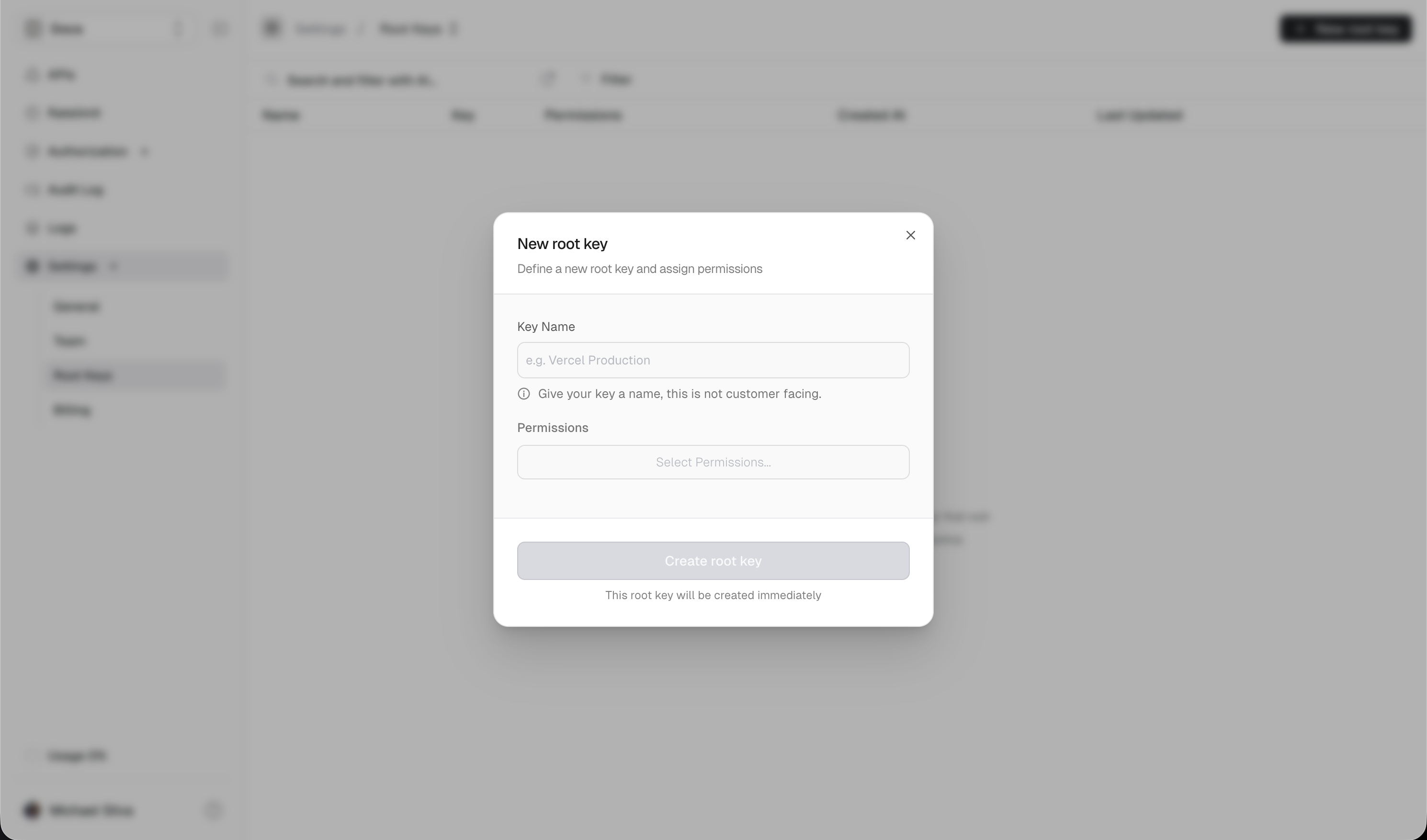
Go to Settings
Navigate to Settings → Root Keys in your dashboard.
Configure permissions
Give the key a descriptive name and select only the permissions it needs.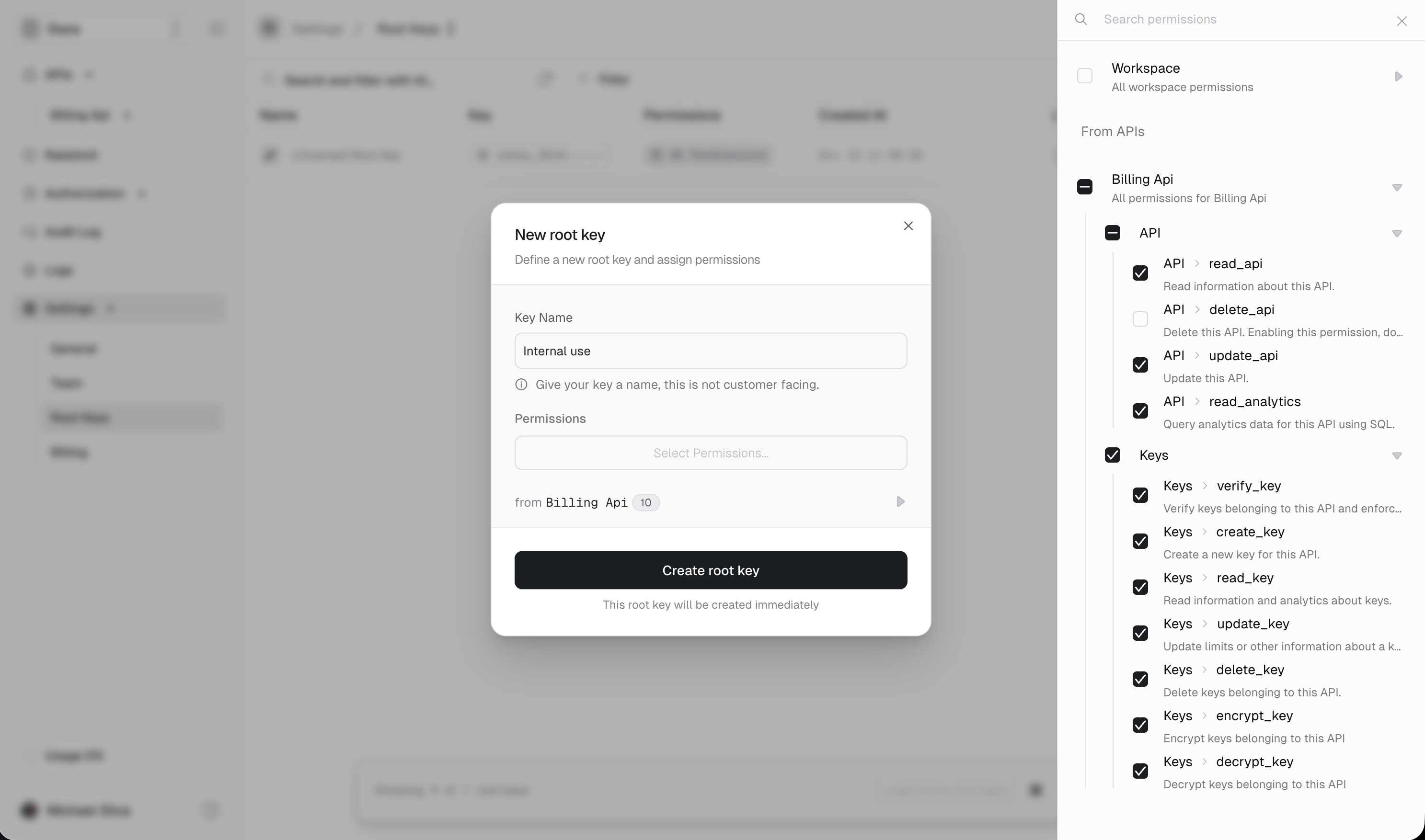
| Use case | Permissions needed |
|---|---|
| Verify keys only | api.*.read_key |
| Create keys for users | api.*.create_key, api.*.read_key |
| Full key management | api.*.create_key, api.*.read_key, api.*.update_key, api.*.delete_key |
| Rate limit overrides | ratelimit.*.set_override |
Best practices
Use minimal permissions
Use minimal permissions
Only grant the permissions each root key actually needs. A key that only verifies API keys doesn’t need
delete_key permission.Use separate keys for different services
Use separate keys for different services
Create dedicated root keys for each service or environment:
production-api-server— verify and create keysadmin-dashboard— full management accessbilling-service— update key credits only
Rotate keys periodically
Rotate keys periodically
Even without a breach, rotate root keys every few months as a security practice. Create a new key, update your services, then delete the old one.
Never log root keys
Never log root keys
Ensure your logging doesn’t capture root keys in request bodies or headers.
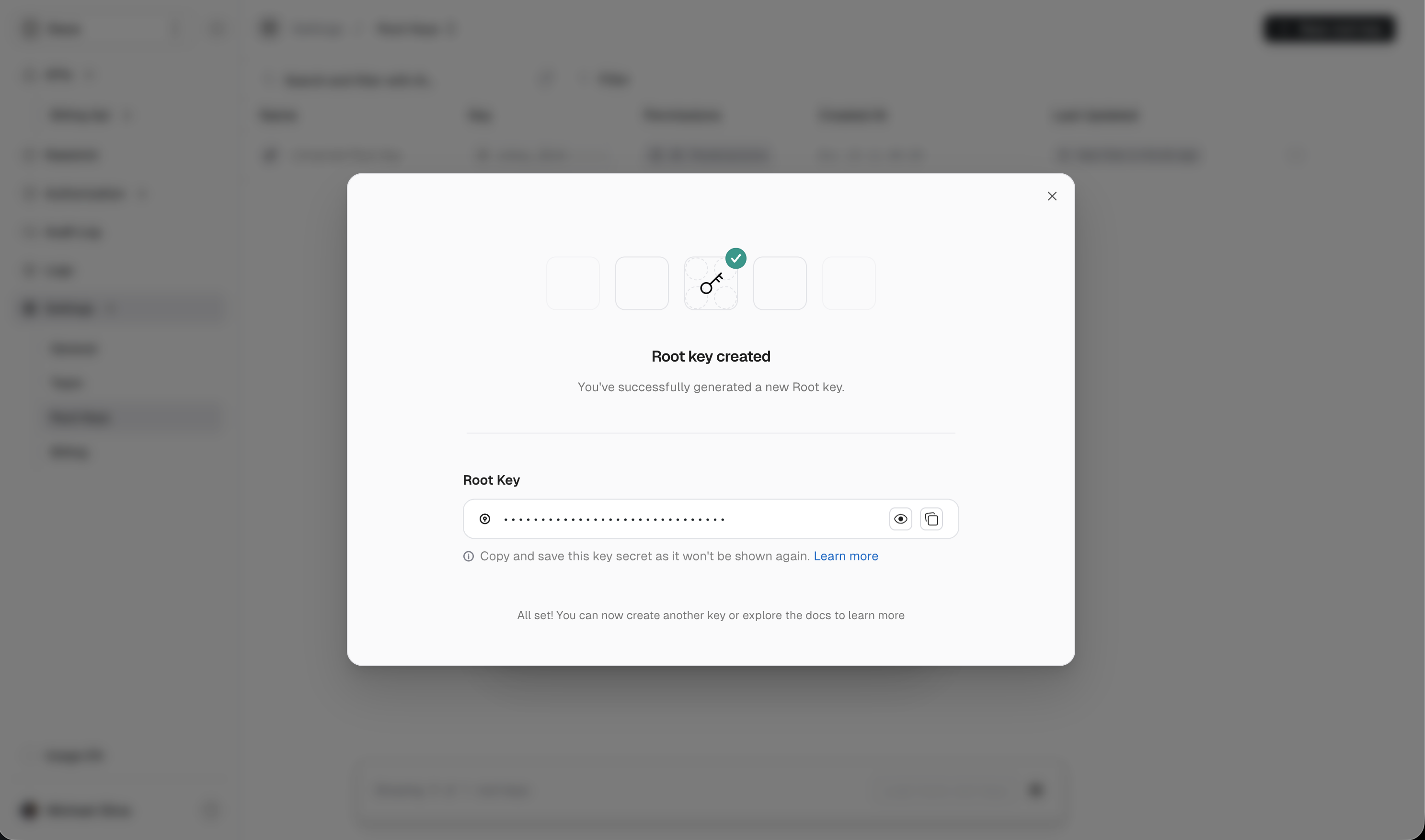
If a root key is leaked
Act immediately:- Revoke the key — Go to Settings → Root Keys and delete the compromised key
- Create a new key — Generate a replacement with the same permissions
- Update your services — Deploy the new key to your environment
- Check audit logs — Review Audit Logs for any unauthorized activity
- Rotate affected API keys — If you suspect API keys were created or modified, consider rerolling them